Model Context Protocol (MCP)
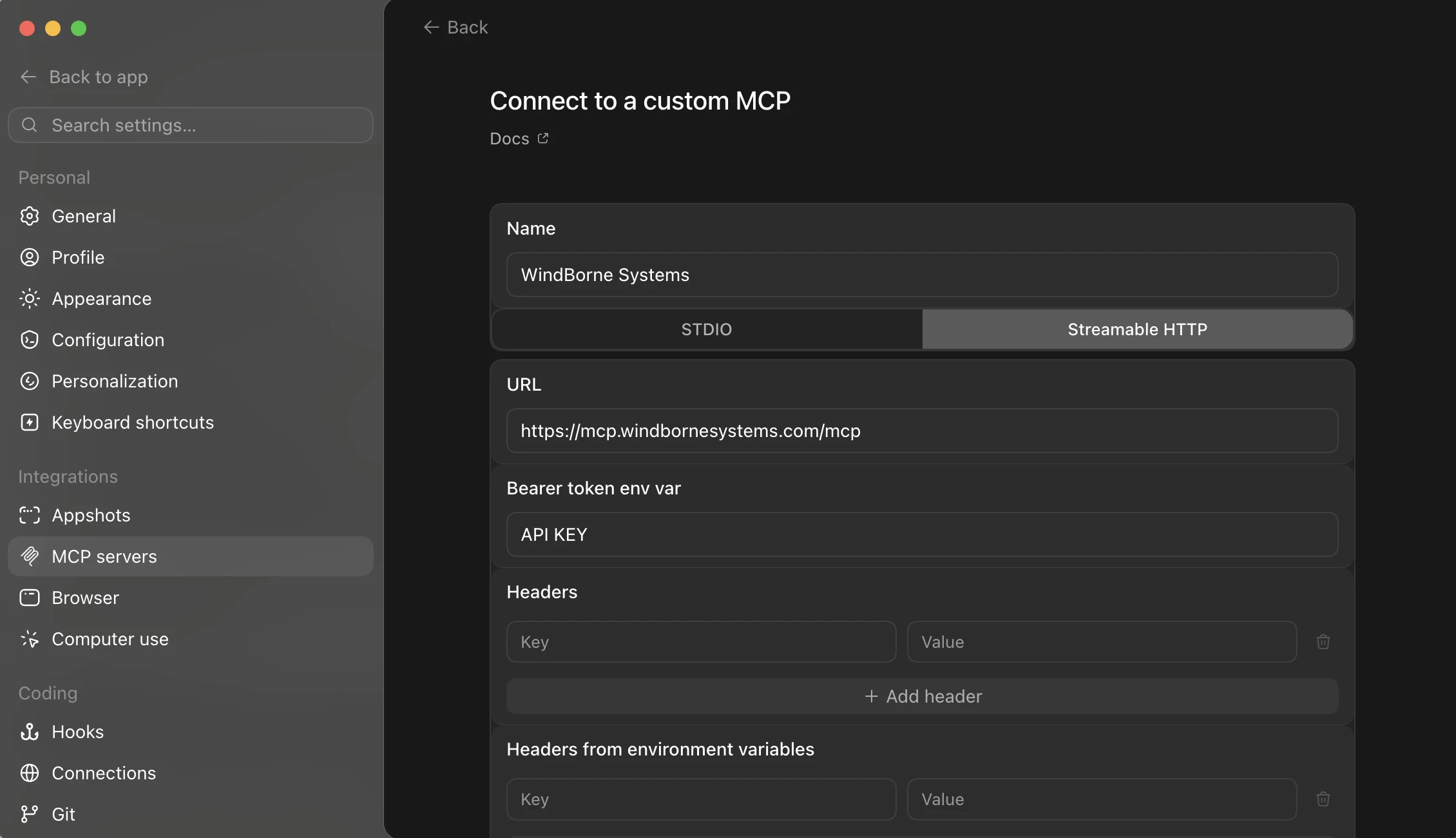
The Model Context Protocol (MCP) enables AI assistants to access WindBorne's real-time weather data through a secure, standardized interface.
Available Endpoints
All WindBorne API endpoints are accessible through MCP. With API keys, you get access to the full set:
- Observations: observations, soundings, super observations, constellation status, flying missions, flight paths, predicted paths, current location, launch sites
- Forecasts: point forecasts, interpolated point forecasts, gridded forecasts, station forecasts, forecasted soundings, initialization times, run information, variables, historical gridded and interpolated data
- Insights: population-weighted heating and cooling degree days (HDD/CDD), calculation times
- Severe Weather: tropical cyclone tracking and prediction
Endpoints marked [free] in the API docs (interpolated point forecast, initialization times, run information, variables, archived initialization times) are available without authentication alongside the documentation tools.
Two Modes of Operation
Getting Started
-
Install the required Python package
Install Commandpip install pydantic-ai>=0.3.2pip install pydantic-ai>=0.3.2 -
Set API credentials as Environment Variables
Shell Commandsexport WB_CLIENT_ID=your_client_idexport WB_CLIENT_ID=your_client_idexport WB_API_KEY=your_wb_api_keyexport WB_API_KEY=your_wb_api_keyThese commands are also available when the API key is created.
-
Connect to MCP Server using Python
Python Connectionfrom pydantic_ai.mcp import MCPServerStreamableHTTPfrom pydantic_ai.mcp import MCPServerStreamableHTTPwindborne_server = MCPServerStreamableHTTP(windborne_server = MCPServerStreamableHTTP(url="https://mcp.windbornesystems.com/mcp", url="https://mcp.windbornesystems.com/mcp",headers={ headers={"wb-client-id": os.getenv("WB_CLIENT_ID"), "wb-client-id": os.getenv("WB_CLIENT_ID"),"wb-api-key": os.getenv("WB_API_KEY") "wb-api-key": os.getenv("WB_API_KEY")} })) -
Complete Example
Test Connection (Python)import asyncioimport asyncioimport osimport osfrom pydantic_ai.mcp import MCPServerStreamableHTTPfrom pydantic_ai.mcp import MCPServerStreamableHTTP# Get credentials from environment variables# Get credentials from environment variablesWB_CLIENT_ID = os.getenv("WB_CLIENT_ID")WB_CLIENT_ID = os.getenv("WB_CLIENT_ID")WB_API_KEY = os.getenv("WB_API_KEY")WB_API_KEY = os.getenv("WB_API_KEY")async def main():async def main():# Create MCP client # Create MCP clientclient = MCPServerStreamableHTTP( client = MCPServerStreamableHTTP(url="https://mcp.windbornesystems.com/mcp", url="https://mcp.windbornesystems.com/mcp",headers={ headers={"wb-client-id": WB_CLIENT_ID, "wb-client-id": WB_CLIENT_ID,"wb-api-key": WB_API_KEY "wb-api-key": WB_API_KEY} }) )# Use the client as an async context manager # Use the client as an async context managerasync with client: async with client:# Call a tool # Call a toolresult = await client.call_tool( result = await client.call_tool(tool_name="get_interpolated_point_forecast", tool_name="get_interpolated_point_forecast",arguments={ arguments={"coordinates": "37.7749,-122.4194", "coordinates": "37.7749,-122.4194","model": "wm-5c", "model": "wm-5c","min_forecast_hour": "0", "min_forecast_hour": "0","max_forecast_hour": "24" "max_forecast_hour": "24"} }) )# Print result # Print resultprint("Forecast result:", result) print("Forecast result:", result)if __name__ == "__main__":if __name__ == "__main__":asyncio.run(main()) asyncio.run(main())
MCP for Claude Code
Use the Claude Code CLI to connect with header-based auth (no credentials in the URL).
-
Set API credentials as environment variables
Shellexport WB_CLIENT_ID=your_client_idexport WB_CLIENT_ID=your_client_idexport WB_API_KEY=your_wb_api_keyexport WB_API_KEY=your_wb_api_key -
Add the WindBorne MCP server
Replace WB_CLIENT_ID and WB_API_KEY with your actual credentials, or use the env vars from the previous step.
Shellclaude mcp add --transport http -s user windborne-api https://mcp.windbornesystems.com/mcp \claude mcp add --transport http -s user windborne-api https://mcp.windbornesystems.com/mcp \--header "wb-client-id: $WB_CLIENT_ID" \ --header "wb-client-id: $WB_CLIENT_ID" \--header "wb-api-key: $WB_API_KEY" --header "wb-api-key: $WB_API_KEY" -
Test the connection
Start Claude Code and ask something like "What's the weather in New York?" to verify connectivity.
MCP for Claude Paid Users
This requires the Claude desktop app. Complete these steps:
-
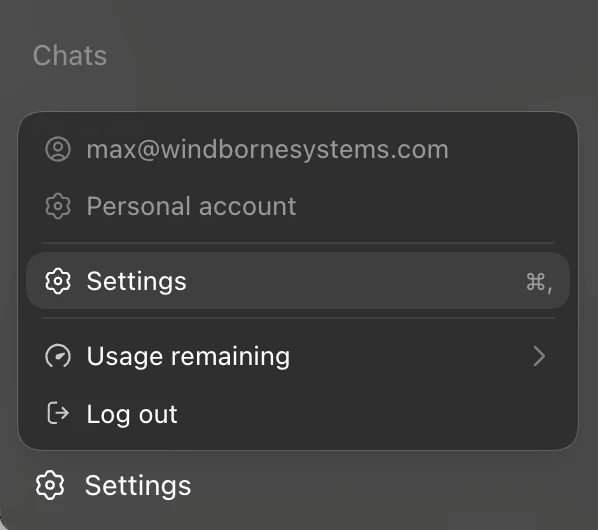
Access Connectors
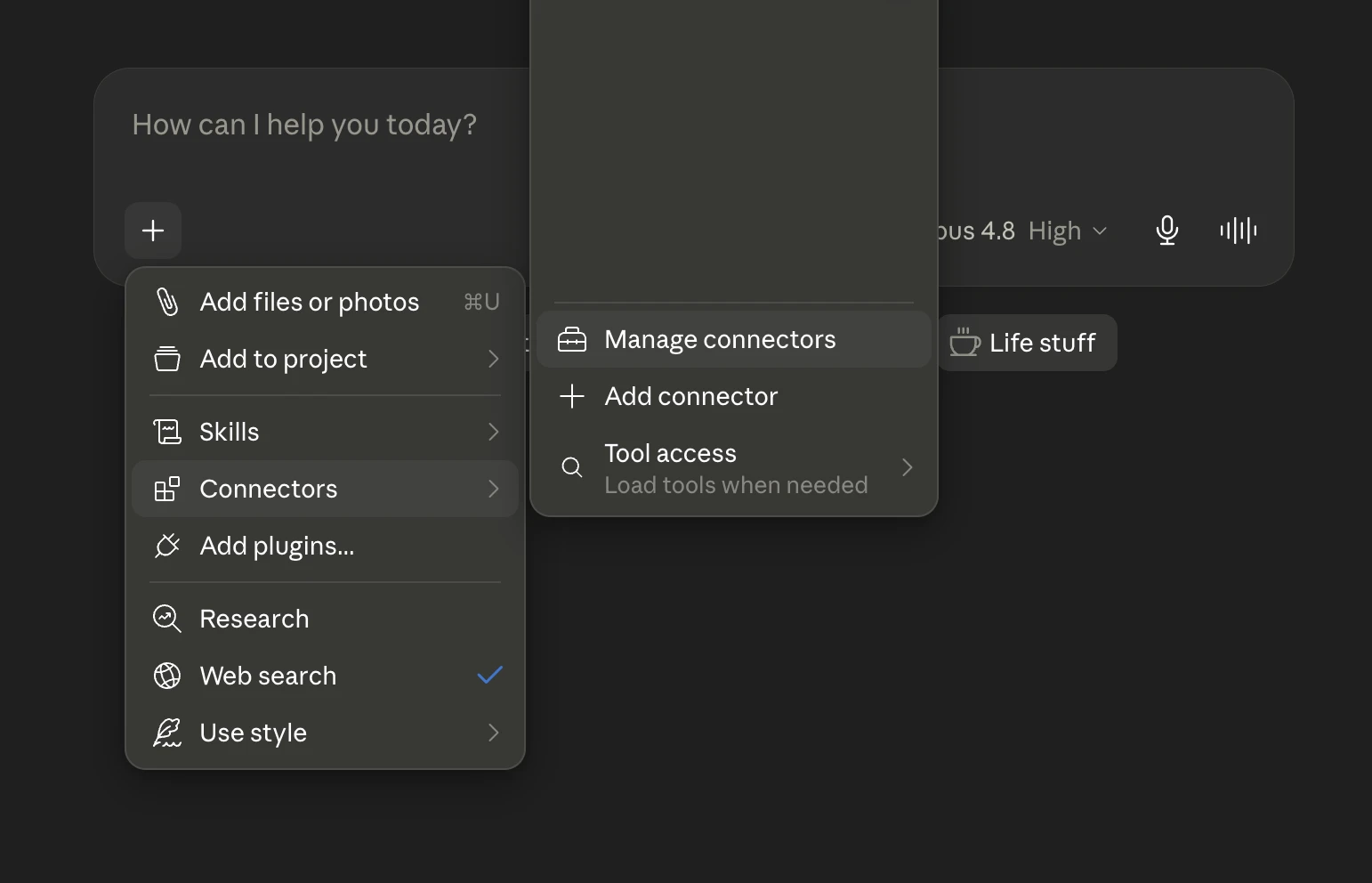
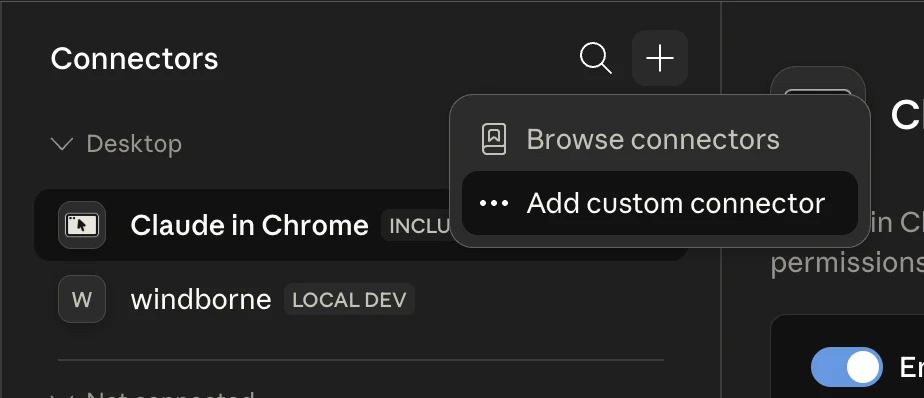
Under your account settings, open "Connectors" and press "+ Add custom connector". If you don't see this section, you are not on a paid plan. Use the free plan steps below.
-
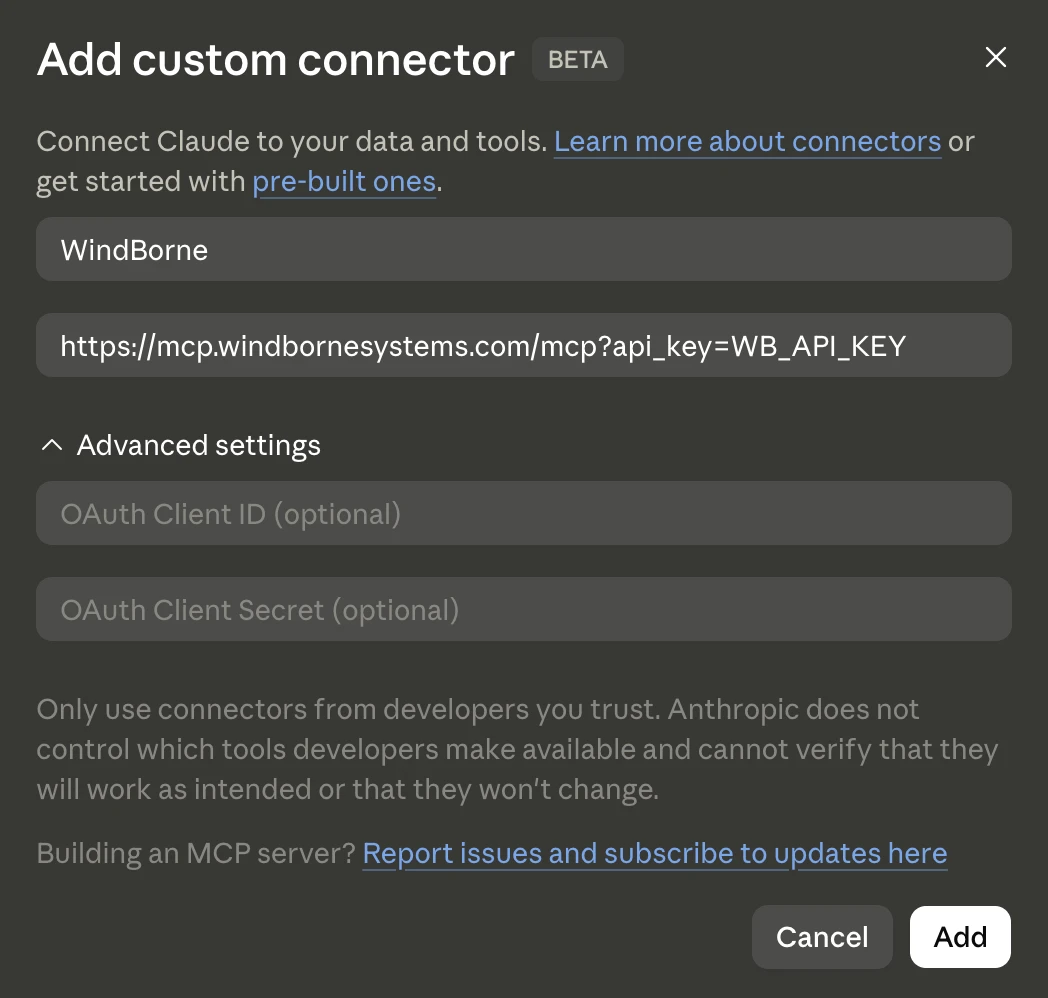
Configure your Connector
Give your connector a name and a user-specific URL. Replace WB_CLIENT_ID and WB_API_KEY with your actual credentials (available on the API Keys page).
https://mcp.windbornesystems.com/mcp?client_id=WB_CLIENT_ID&api_key=WB_API_KEYhttps://mcp.windbornesystems.com/mcp?client_id=WB_CLIENT_ID&api_key=WB_API_KEY -
Test the Connection
Activate the tool in prompt settings and ask for the weather to verify connectivity.
MCP for Claude Free Users
This requires the Claude desktop app. Complete these steps:
-
Create or Locate the Configuration File
When you start the Claude desktop app it auto-detects MCP servers from claude_desktop_config.json . Locate it via the app settings or your file explorer, or create it if missing.
For Windows: %APPDATA%/Claude/claude_desktop_config.json
For macOS: ~/Library/Application Support/Claude/claude_desktop_config.json -
Add MCP Server Details
Add this configuration to enable the WindBorne MCP server:
claude_desktop_config.json{{"mcpServers": { "mcpServers": {"windborne": { "windborne": {"command": "npx", "command": "npx","args": ["mcp-remote", "https://mcp.windbornesystems.com/mcp?client_id=WB_CLIENT_ID&api_key=WB_API_KEY"] "args": ["mcp-remote", "https://mcp.windbornesystems.com/mcp?client_id=WB_CLIENT_ID&api_key=WB_API_KEY"]} }} }}} -
Restart Claude & Test the Integration
Restart the app and activate the WindBorne MCP in your prompt settings to test.
API Docs MCP
The MCP server also provides documentation tools, available both with and without API keys. Without authentication, these are the only tools exposed. With authentication, they are available alongside the live data tools.
- read_api_docs Search and read API documentation by topic
- list_api_endpoints See all available API endpoints
To connect without authentication (docs-only mode):